
How to find Wi-Fi dead zones in your house
A dead zone is rarely the whole house. It's a room, a corner or a floor. Here's how to find exactly where your Wi-Fi gives up, and why.
Wi-Fi heatmap for iPhone
Walk through your home with your iPhone and get a color map of your Wi-Fi: strong where it flies, red where it drops.
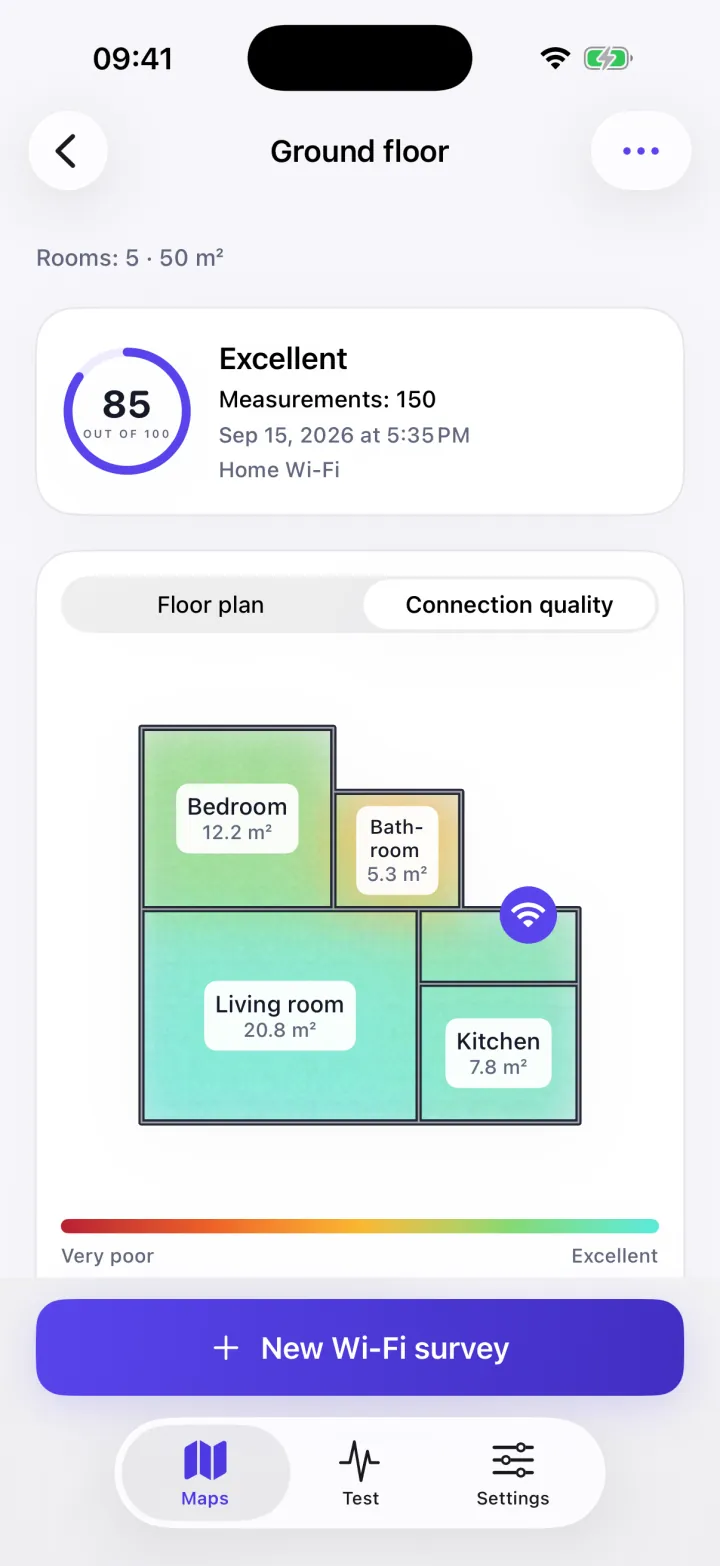
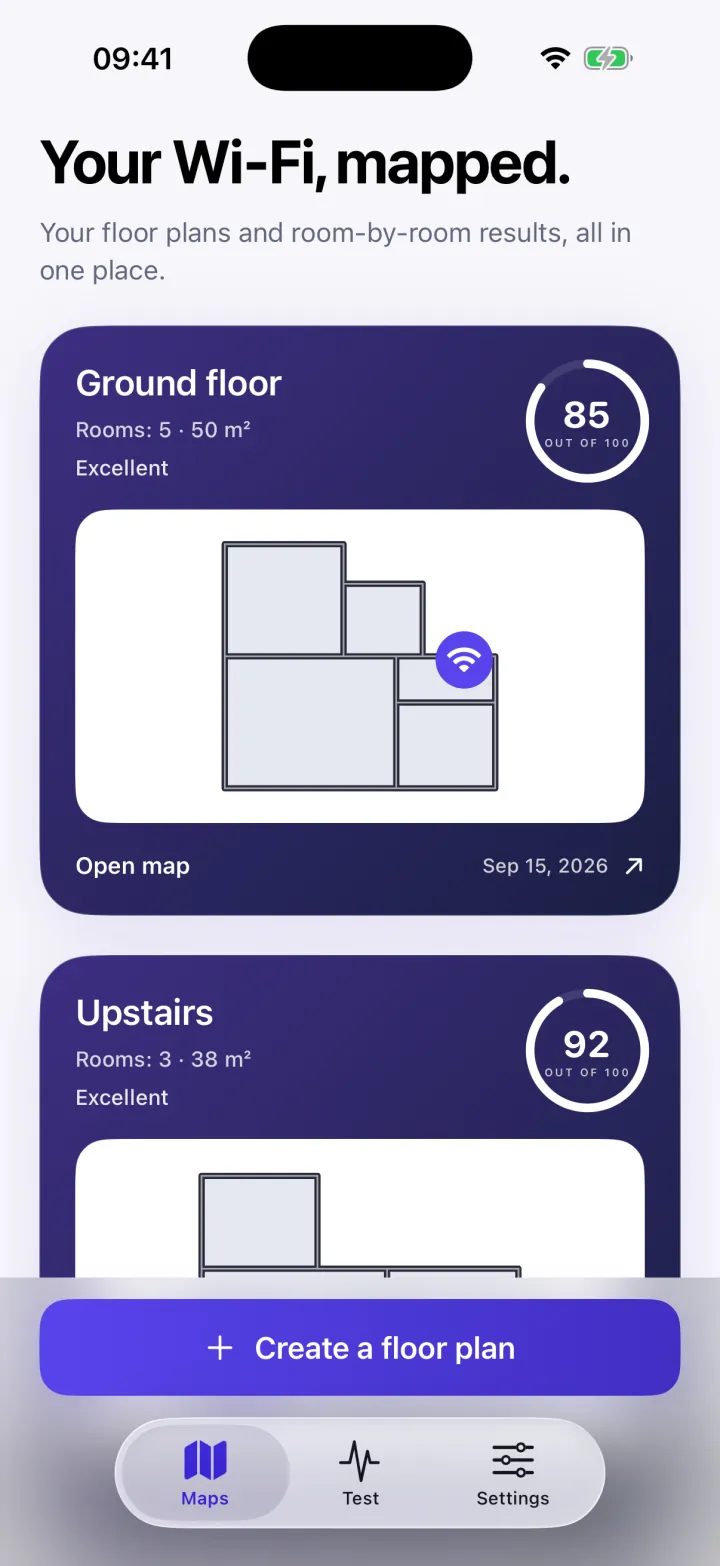
Wi-Fi fades with distance, walls, floors and even furniture. Guessing where it fails leads to moving the router at random or buying an extender you may not need. A map shows you exactly where the signal gives up, so you fix the right spot.
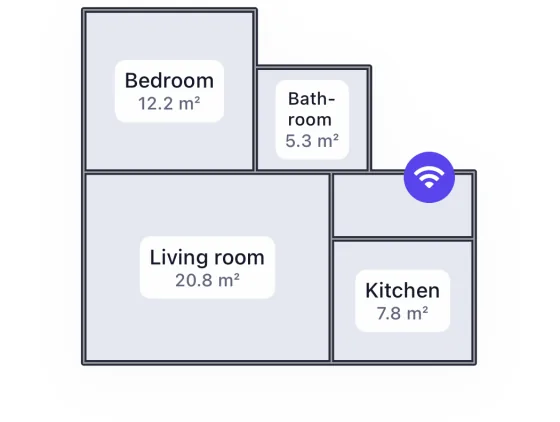
Walk through your home with your iPhone to draw the rooms you want to check.
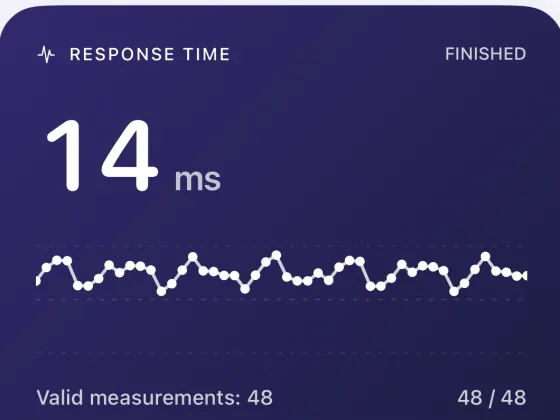
Move from room to room. The app records how your connection responds where you stand.
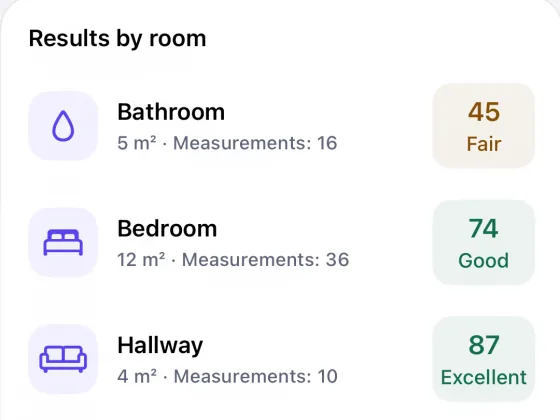
Colors show where Wi-Fi is strong and where it drops, with a quality score out of 100.
Each room gets a color and a label, so the weak spots stand out even if you don't know anything about networks.
Network quality
● FairPractical answers to the questions people ask most about weak Wi-Fi at home.
A dead zone is rarely the whole house. It's a room, a corner or a floor. Here's how to find exactly where your Wi-Fi gives up, and why.
Network engineers have used heatmaps for years to plan Wi-Fi in offices. You can make one for your home with a phone, and it takes minutes.
Your iPhone shows three Wi-Fi bars and nothing else. Here's what you can actually measure, and which numbers matter.
Moving the router costs nothing and often fixes more than buying new hardware. Here's where it should go, and the spots that silently ruin your Wi-Fi.
When the Wi-Fi works everywhere except one room, the fix is usually cheaper than a new router. Start from the top of this list and re-test after each step.
Not all walls are equal: one plasterboard wall costs you almost nothing, one reinforced concrete wall can end your Wi-Fi. How to tell which is which.
You're standing next to the node and your phone is still talking to the router at the other end of the house. Here's why, and what really helps.
Both promise Wi-Fi in every room, but they work very differently. Here's how to choose, and how to check whether you need either before buying.
The most common mistake is putting the second unit in the room with no signal. Here's how to find the spot that actually works, and how to check it.
Most homes need fewer nodes than the box suggests, and adding more can make things worse. How to decide from your own home, not from square meters.
Cloud gaming asks your Wi-Fi to do the two hardest things at the same time: carry a lot, and never hesitate.
You checked the walls. The thing blocking your signal may be a fish tank, a wardrobe door or the floor heating.
The charger works without Wi-Fi. The clever parts, like cheap-rate scheduling and solar charging, usually don't.
It's a floor plan of your home colored by Wi-Fi quality. Warm colors mark weak spots and dead zones, cool colors mark areas with a strong connection, so you can see at a glance where the signal fails.
No. iOS doesn't let apps read the raw Wi-Fi signal value, so no App Store app can show real dBm on iPhone. WiFi Heatmap measures how your connection responds in each spot and turns it into a quality score and the colors on the map.
No. Your floor plans and measurements are saved on your iPhone.
No. You only need your iPhone and the Wi-Fi network you want to check.
No. A speed test measures your internet line to a remote server. A heatmap shows how your Wi-Fi changes from room to room, which is where most problems at home actually come from.
Map your home in a few minutes and fix the right room first.
Download on the App Store